
Burning Bridges AI
Video Generator
Put your cast in the spotlight. Upload a photo to create your Burning Bridges AI performance, complete with the original scene and sound.
Add your photoReference and example clips.
Your performances will appear here. Add a lead photo to create your first video.
More scenes to make your own
A scene with many faces
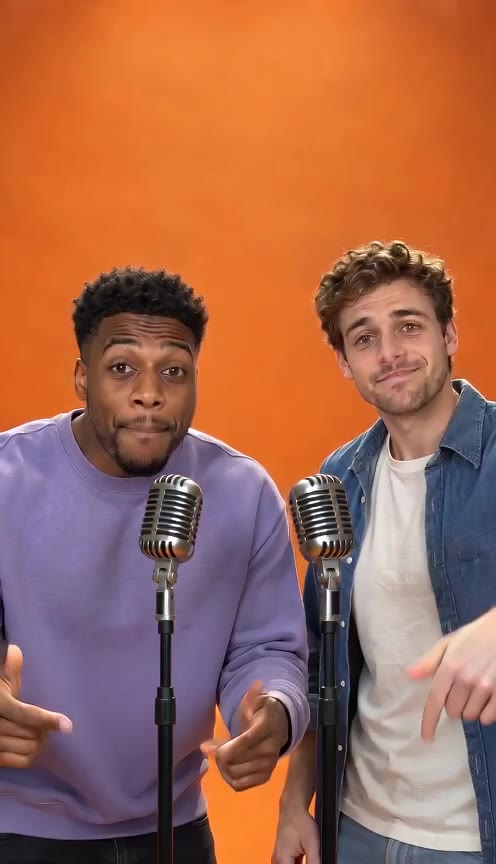
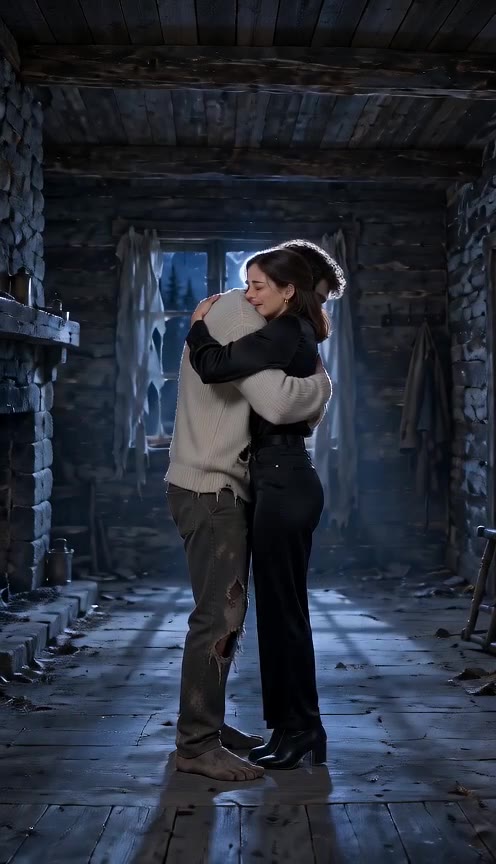
One Performance. Many Different Casts.
Explore these Burning Bridges AI reference examples: a new outfit, a different lead, or a coordinated crowd. Tap any clip to watch the full version.
Your cast. The same performance.
How to Make a Burning Bridges AI Video in Three Steps
Upload a clear lead portrait in the first slot. Include the face and any clothing you want represented.
- 01
Choose the person in front
Leave supporting slots empty for a lead-only request, or add up to five separate portraits. Replace changes a photo in its existing slot.
- 02
Keep the crowd or recast it
Choose 480p or 720p in Settings and review the estimate. Completed tasks appear in My creations for playback and download.
- 03
Check the estimate and create
Select a resolution in Settings and review the credits shown in the Generate button. Submit when your photos are ready. Your completed Burning Bridges AI video appears in My creations, where you can preview it and download it.
How the Recast Uses Your Photos
The supplied video is a motion reference: it shows the room, camera movement, gestures, and timing. Your first photo identifies the lead, and up to five additional photos describe supporting people. The model receives these references together with an editing instruction.
This is a new AI-generated interpretation of the scene. Faces, clothing, hands, background details, and sound can change. Compare the whole result with the source before sharing; a reference is guidance, not a promise of an identical performance.
What Photos Work Best
Start with a clear lead portrait
Choose one person, with a visible face and upper body. Even lighting and an unobstructed face make the reference easier to read. Include the actual clothes you want represented; avoid heavy filters and very small faces.
Use JPG, PNG, or WebP within the upload limit shown by the tool. Enlarging a blurry photo does not recover missing facial detail. You do not need to force every portrait to an arbitrary pixel width.
Give the Supporting Cast a Shared Look
Separate photos. Recognizable roles.
Add the lead first, then up to five individual photos. Keep each person in a separate slot. Describe roles in a custom prompt if needed; upload order helps assign references, but does not guarantee an exact position on screen.
Leave these slots empty to request the original crowd. For a group recast, choose distinct faces and outfits that are easy to describe, then review the whole scene for blended identities.
Drake Burning Bridges AI Video: What This Trend Is About
The recast idea starts with Drake’s Burning Bridges music video: a recognizable performance, a cup, and people gathered around the lead. An AI recast uses new character photos to reinterpret the people in that scene.
This independent tool lets you prepare a lead photo and optional supporting cast using a supplied short reference. It is not an official Drake product. Review the result and your rights to the photos, footage, and music before sharing.
A Burning Bridges AI Prompt You Can Edit
The default instruction is enough to begin. For more specific casting, use this starter in Settings → Custom prompt, then add the visible outfit or role you want. It guides the edit; it cannot guarantee likeness or fix a poor reference photo.
Use the first reference photo for the lead performer and the remaining photos for the supporting cast in order. Follow the supplied video for camera movement, timing, and gestures. Use the face, hair, and visible clothing from each photo. Keep the room and lighting close to the reference. Avoid adding extra people.
Copying or editing a prompt costs no credits. Using it fills the settings only; Generate is a separate action. For a new scene rather than this reference, use AI Video.
What to Check in the 29-Second Reference
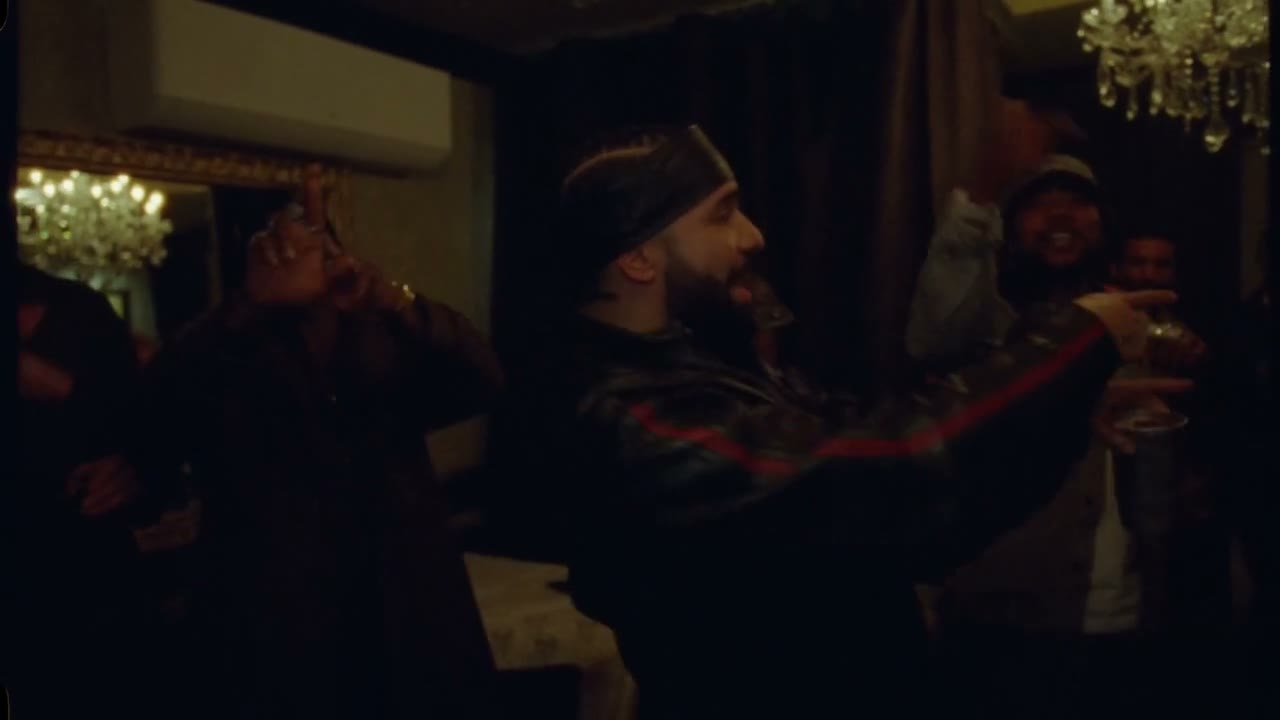
Watch the source preview before choosing your cast. These approximate checkpoints describe the supplied clip, not separate shots you can rearrange or a guarantee of the generated result.
Swipe the table to read all columns.
| Time | What is visible | Review in your result |
|---|---|---|
| 0:00–0:06 | The lead moves toward the camera, bringing a cup and gesturing hands into the foreground. | Check the face at the approach and the outline of the cup and hands. |
| 0:06–0:12 | The close framing continues as the lead gestures near the chest and turns to the side. | Look for changes in the face, hairline, clothes, and accessories as the angle changes. |
| 0:12–0:20 | The lead turns toward the surrounding people, then faces forward as the view opens up. | Review supporting identities and moments when people or arms overlap. |
| 0:20–0:29 | The group remains visible as the lead raises a hand, comes closer again, and turns near the end. | Check continuity through the final close view and turn, then listen to the ending. |
Check the Picture and Sound Before Sharing
The reference includes music, and the generation request asks for audio. A finished result may still have missing or changed sound. Open its player, unmute it, and check the downloaded file. There is no separate audio-retry control on this site.
The reference and a paid plan do not grant rights to the music, footage, or people shown. Use material you have permission to transform and publish, including for commercial posts. See the Use Policy and Terms.
Which Workflow Fits Your Idea?
Reviewed . Written by the operator of this site; this is a workflow comparison, not an independent ranking or a price comparison.
Swipe the table to read all columns.
| Option | What you prepare | When to choose it |
|---|---|---|
| Burning Bridges AI — this site | One lead photo; optional supporting portraits. The approximately 29-second reference is supplied. | You want this prepared scene. Check the credit estimate; signup credits do not cover a full performance. Subscriptions and one-time credit packs are available on the Pricing page. |
| Higgsfield Genjutsu | Your own video, image references, and an instruction. The official product offers Motion Transfer and Object Swap. | You want to change selected elements or reinterpret your own source. Check its current limits and credit quote in the product. |
| Our AI Video tool | A prompt and any images or video required by the selected model. | You want a different scene, duration, or supported format. Models have different input limits and costs. |
| Film your own scene | People, a location, recording equipment, and an editing workflow. | You need real performances and direct control over the shoot. Arrange permission for the people and music you use. |
Credits, Plans, and the Cost of a Render
The generator shows a credit estimate for your selected settings. A longer reference or higher resolution can cost more. Review the final quote before submission; plan-wide image and video examples are not a quote for this performance.
Lead only — Standard 15s: 150 / 300 credits; Full 29s: 300 / 600 credits (480p / 720p). With supporting-cast photos — Standard: 225 / 500; Full: 450 / 1,000 credits. Every plan and pack can use either length with enough credits.
Try It
No subscription. No recurring charges.
450 credits
Lead only: 3 Standard 15s or 1 Full 29s videos at 480p
720p: 1 Standard; Full needs 600 credits
Counts are for lead-only edits using regular credits, before any bonus. Supporting-cast edits use more credits.
- Image, video & motion transfer tools
- Download completed images & videos
- Generation history in your account
HD
No subscription. No recurring charges.
1,000 credits
Lead only: 6 Standard 15s or 3 Full 29s videos at 480p
At 720p: 3 Standard or 1 Full
Counts are for lead-only edits using regular credits, before any bonus. Supporting-cast edits use more credits.
- Image, video & motion transfer tools
- Download completed images & videos
- Generation history in your account
Creator
No subscription. No recurring charges.
2,600 credits
Lead only: 17 Standard 15s or 8 Full 29s videos at 480p
At 720p: 8 Standard or 4 Full
Counts are for lead-only edits using regular credits, before any bonus. Supporting-cast edits use more credits.
- Image, video & motion transfer tools
- Download completed images & videos
- Generation history in your account
Basic
$0Try before you subscribe
- 18 one-time signup credits
- Generation history included
- Preview and download completed results
- Costs vary by model and settings
- No subscription needed for signup credits
Prices in USD. PayPal plans renew until cancelled; cryptocurrency plans are single payments. Monthly/yearly credits expire after their paid period. One-time pack credits never expire. Terms · Refund Policy.
Why a Recast Can Fail — and What to Check
Start with the existing task and its status. A new submission is a new generation and can spend credits again.
Swipe the table to read all columns.
| What you see | Possible cause | Next step |
|---|---|---|
| Generate is unavailable | A lead photo may be missing, or the account may not have enough credits. | Add the lead, sign in, and compare your balance with the estimate. The 18 signup credits do not cover this full clip. |
| The face or outfit looks different | A small, obscured, or heavily filtered reference may lack detail; generation can also vary. | For a future task, use a clear original portrait and a matching prompt. Higher output resolution alone does not guarantee likeness. |
| Supporting people are mixed up | References may be ambiguous or roles may overlap in the scene. | Check the slot order and use distinct portraits. Describe the intended roles. Exact placement is not guaranteed. |
| Hands or the cup change shape | Fast movement and overlapping objects can be difficult to reconstruct. | Review these moments before sharing. A clearer portrait may help identity, but does not ensure correct hands. |
| The result has no sound | The player may be muted, or the generated file may have no usable audio. | Unmute and check the download. If it remains silent, edit in audio you may use; there is no audio-only retry here. |
| A task is slow, timed out, or under review | The provider may still be processing it, or its final status may be unknown. | Open My creations and check the existing task. Do not submit a duplicate. Confirmed failed tasks return reserved credits; uncertain tasks wait for reconciliation. |
Is Burning Bridges AI Free?
You can watch the source preview and prepare your cast for free. A new account receives 18 one-time signup credits. Generation uses credits, and the amount depends on the model, resolution, and duration shown in the estimate.
The 18 signup credits do not cover either video version. Standard 15s starts at 150 credits; Full 29s starts at 300 credits. To try an image first, use AI Image; a GPT Image 2.5 Flare image at 1K medium uses 6 credits. Review plans and credit options before choosing a larger task. You can pay with PayPal for a subscription or a one-time credit pack.
Frequently Asked Questions
Answers about preparing a task, reviewing results, and using credits.
What is a Burning Bridges AI video?
It is an AI reinterpretation of a supplied performance using your character photos. Choose Standard 15s or Full 29s from the supplied reference. Reference and example previews are not your generated result.
Do I need editing experience?
No timeline editing is needed to prepare the task. Add a lead photo, optionally add supporting portraits, choose a resolution, and check the credit estimate before generating.
Can I use a photo of a friend?
Only use a photo and likeness you have permission to transform. Check permission to publish the resulting footage and music too; uploading a photo does not establish those rights.
How long does a render take?
There is no guaranteed turnaround. Time depends on the model, input, and provider queue. Follow the existing task in My creations rather than submitting again while it is processing.
What resolution should I pick?
Choose 480p or 720p according to your intended output and credit budget. Higher resolution costs more and does not guarantee better likeness or repair hands and other generated details.
Why does my result not look like the uploaded person?
Face angle, shadows, filters, and a small face in the source can limit the reference. Use a clearer portrait for a future task and check your casting instruction. AI results can still vary.
Can I share the clip on TikTok or Instagram?
Review the whole clip and the destination platform’s rules before posting. You need the relevant permissions for the photos, likenesses, footage, and music; the supplied reference is not a license.
Can I use a result commercially?
A paid plan does not by itself clear third-party rights. Commercial use requires the necessary permissions for all source material and compliance with the Terms and Use Policy.
What happens if my render fails?
A confirmed failed task returns its reserved credits. A timeout or uncertain provider status is not a confirmed failure; check the existing task and wait for reconciliation instead of resubmitting. Payment refund requests are covered separately in the Refund Policy.
Do credits expire?
Subscription credits expire at the end of their billing period. One-time pack credits do not expire. The free allowance is 18 one-time signup credits and does not cover either video version. PayPal checkout supports subscriptions and one-time credit packs.
Ready to create your Burning Bridges AI video?
Choose your lead, add anyone else you want represented, and create your Burning Bridges AI version from the loaded reference.
Try Burning Bridges AI