Skip to content

AI Video Generator

Create an AI video from a scene you describe or an image you want to bring to life. Choose your model, shape the action and camera movement, and preview the result in your workspace.

Creation mode
Reference video 2–30s
Prompt is required

Creative examples

Explore subjects, motion, and camera direction

These video examples show different creative directions: a product presentation, a moving character, an unusual transition, and a camera-led scene. Use them to identify the kind of shot you want. They are references for ideas, with source links, rather than a benchmark for every AI video model.

Camera movementOfficial Higgsfield example ↗

Camera movement

Direct the action and the camera

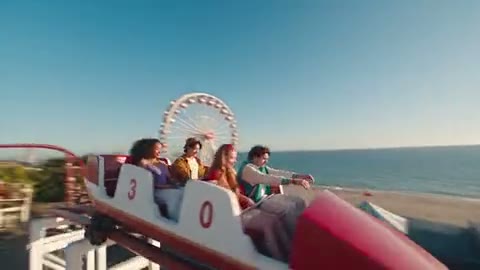
Describe what moves in the scene and what the camera does as two separate instructions. A person turning toward a window with a slow camera push-in is easier to evaluate than a request for constant action everywhere. Watch whether the subject movement and camera movement work together, then revise the part that distracts from your idea.

The ride example makes camera direction part of the scene. When preparing your own AI video, distinguish a camera orbit from the movement of the riders or vehicle. A single camera instruction makes it easier to judge whether the resulting viewpoint supports the action or distracts from it.

Create an AI video
Coffee cups presented to camera in a bright cafe
Product storiesCommunity example by kevinz ↗

Product stories

Bring a still image into motion

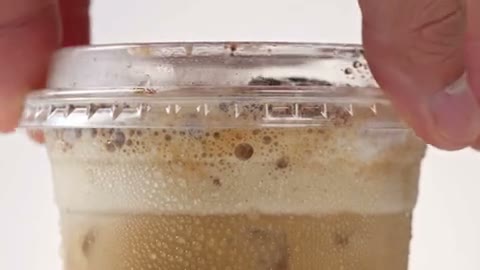
Choose an image input mode when you already have a composition you like. Use the prompt to describe movement, pace, and any intended camera change. A reference can guide the opening appearance, but the generated frames may change small details. Keep the requested action compatible with the pose and space visible in the image.

The cafe example puts a small product close to the camera, where its silhouette and movement become the focal point. For your own AI video, describe how the object enters or turns in the frame. Use a product reference where supported, and inspect branding and edges throughout the generated movement.

Create an AI video
Runner crossing floating platforms above a sunlit landscape
Worlds in motionOfficial Higgsfield example ↗

Worlds in motion

Match the clip to its destination

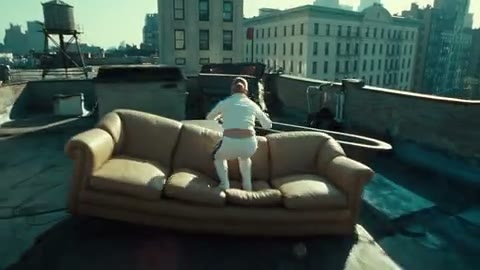
Decide whether the video is for a vertical post, a landscape scene, or another format before generating. The available ratios, durations, resolutions, and reference choices depend on the selected model. Check the estimate after changing these settings. Use the shortest suitable clip while testing an idea, then review how well its action fits the selected length.

The runner example uses a large environment to make movement easy to follow. A request for your own AI video can name a travel direction and the space the subject moves through. Start with an action that fits a short clip, then check contact with surfaces and continuity between poses.

Create an AI video
A figure holding a butterfly while falling through a bright tunnel of light
Creative transitionsCommunity example by mendelgoose1797 ↗

Creative transitions

Review the whole sequence

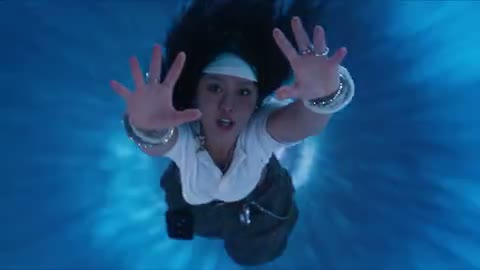
Watch the clip from beginning to end before downloading it. Look for shifts in faces or clothing, objects appearing unexpectedly, abrupt camera changes, and an ending that cuts through the main action. A strong opening frame does not establish the quality of the whole video. Keep a useful variation and change one instruction for the next attempt.

The tunnel example is a visual reference for a scene built around a strong change in surroundings. Describe the intended destination and one clear transition in your own request. Complex effects can obscure the subject, so review whether the AI video still communicates the moment you wanted.

Create an AI video

How it works

Make an AI video from your scene idea

Describe your scene, add an optional image where supported, and choose your video settings. Review the finished clip before downloading or preparing another variation.

  1. 01

    Choose a video starting point

    Open the AI Video studio and select a model with the input mode you need. Start from text for a new scene, or add an image in a supported reference mode. A still gives the request a visible composition; your prompt supplies the action you want to explore.

  2. 02

    Set the scene in motion

    Name the main action, then describe the camera movement and pace. For example, ask for a coffee cup to turn slowly while the camera stays still. Give the AI video one readable event to develop, with enough space around the subject for that movement.

  3. 03

    Choose the clip settings

    Select from the durations, aspect ratios, and resolutions offered by your chosen model. Check the updated credit estimate before submitting. Sign in and use your available credits to start the request; track its status in My creations without submitting a second copy while the first is pending.

  4. 04

    Play, review, and download

    Watch your finished AI video through to the final frame. Check that the action completes, the subject remains recognizable, and the camera behaves as intended. Download a useful clip, or adjust the motion instruction for a new attempt. Each new generation has its own estimate.

What you control

Control how your scene unfolds

Use this page for an open video request. Use the homepage when you want the fixed indoor performance, one lead photo, optional background people, and the original soundtrack.

Two starting points for an AI video

Use text when the setting is still open to exploration. Use a reference image when the appearance is already important to the shot. Both paths end with a playable clip, but the inputs give you different ways to direct it.

Create an original scene from a prompt

Explore a shot without first preparing a reference image.

Text-based AI video generation gives you room to describe a place, a subject, and a short event together. A cafe product reveal might specify a warm counter, a cup moving into view, and a steady camera. Select a model that accepts this input mode, then use the prompt to establish the shot rather than depending on an uploaded composition.

Keep the visual priority clear
State what should attract attention first and use the setting to support it. If the product is the focus, excessive background movement can compete with it. When reviewing an AI video variation, check whether the most important event is easy to follow before adding another instruction.

Choose a useful duration
Use the available duration that gives your intended action room to finish. Longer clips can change the estimate and give the model more movement to interpret. Verify the selected length and cost together before you submit the request.

Animate a composition you already like

Use a still to guide appearance and framing as movement begins.

An image-to-video request starts with visible cues for the subject and setting. Describe the change over time: a breeze moving fabric, a character turning, or a camera moving closer. Repeating every detail of the still can obscure that motion instruction. Keep an original copy of the reference so you can compare its appearance with the generated frames.

Check continuity across the clip
Look for clothing patterns, facial features, and product shapes changing as the viewpoint shifts. Review the middle and final frames as well as the opening. The AI video may introduce details that the still does not show, particularly during turns or wider camera moves.

Recover the existing video request
If the result is delayed or the submission response is unclear, check My creations for its current status. Read any failure message before retrying. Confirm whether a clip already exists before starting another request, so an uncertain submission does not become an unintended extra generation.

Limits

Know what your AI video reference can guide

A source image can establish the appearance of a scene, while generated movement introduces new views and details. Choose a starting frame that leaves room for the action you want to see.

Leave space for movement

A tightly cropped portrait offers little context for a wide walking shot. When possible, choose a reference with visible posture and room around the subject. The AI video model may invent details that were outside the frame, so inspect any newly revealed clothing, surroundings, and objects.

Plan one complete moment

A product reveal, a character glance, or a short environmental shot can each work as a focused clip. Fit the intended event to an available duration. Several locations, outfit changes, and camera moves in the same request make it harder to judge whether the main moment succeeded.

Check rights before sharing a clip

Use references you have permission to transform, including any recognizable people or brands. Review the finished video and any audio before publication. The general AI Video studio does not automatically add the fixed Burning Bridges soundtrack; that performance has its own entry on the homepage.

Credits

Check the cost of your AI video

Video estimates depend on the selected model and supported clip settings. Compare the estimate after changing duration or resolution, especially when making several variations. Compare subscription plans and one-time credit packs on the Pricing page.

Starter

For your first ideas.

$8.3/month

$100.0 charged yearly

2,400 credits/year

Up to 400 images

GPT Image 2Nano Banana Pro

Up to 240 videos

Seedance 2.5Kling 3.0 Motion Control
  • Up to 4K images and HD videos, depending on the model
  • Image editing, video creation & motion transfer
  • Download completed images & videos
  • Generation history in your account
Popular40% OFFSave $238.8

Pro

For a steady creative flow.

$30.0/month$49.9/month

$360.0 charged yearly

21,600 credits/year

Up to 3,600 images

GPT Image 2Nano Banana Pro

Up to 2,160 videos

Seedance 2.5Kling 3.0 Motion Control
  • Up to 4K images and HD videos, depending on the model
  • Image editing, video creation & motion transfer
  • Download completed images & videos
  • Generation history in your account
  • Use credits across image and video models
Best Value50% OFFSave $599.8

Business

For more creations, more often.

$49.9/month$99.9/month

$599.0 charged yearly

48,000 credits/year

Up to 8,000 images

GPT Image 2Nano Banana Pro

Up to 4,800 videos

Seedance 2.5Kling 3.0 Motion Control
  • Up to 4K images and HD videos, depending on the model
  • Image editing, video creation & motion transfer
  • Download completed images & videos
  • Generation history in your account
  • Use credits across image and video models

Basic

$0

Try before you subscribe

  • 18 one-time signup credits
  • Generation history included
  • Preview and download completed results
  • Costs vary by model and settings
  • No subscription needed for signup credits

Prices in USD. Subscriptions renew automatically until cancelled; period credits expire. One-time pack credits never expire. Full refund requests within seven days. Terms · Refund Policy.

Questions

AI video questions before you start

Choose a starting frame, describe movement, and understand which settings belong to the selected video model.

Should I start with a prompt or an image?

Use a prompt when you want to explore a scene without committing to a starting composition. Use an image when you already have a subject, appearance, or framing to guide the clip. Select a supported input mode in the studio and add the references it accepts. Each model offers its own combination of input and output options.

How should I describe motion?

Start with one main action, such as a subject walking forward or a product rotating slowly. Add camera direction separately, along with the pace and atmosphere. Avoid asking for several conflicting movements in one short clip. After previewing the result, change the action or camera instruction that needs improvement while keeping the useful parts of the request.

Does AI Video include the Burning Bridges performance and soundtrack?

The fixed Burning Bridges performance and its original soundtrack are available on the homepage. This studio creates a scene from your own prompt and supported references. Its output settings follow the model you select. To place a lead photo into the fixed indoor performance, choose Burning Bridges in the navigation and prepare your cast there.

Can I choose the duration, resolution, and credit cost?

The model determines which duration and resolution options the studio can offer. You can choose from those settings and review the resulting estimate before generating; the estimate changes with the request. Preparing a prompt does not spend credits. The Pricing page lists subscriptions and one-time credit packs with their included credits.

On this site

Give your next scene a clear action

Bring an idea for one shot to the AI Video studio. Choose a supported starting point, describe what moves, and review the clip estimate. If the scene needs a different opening composition, prepare a still in AI Image before returning to animate it.

Open AI Video